UI Branding 
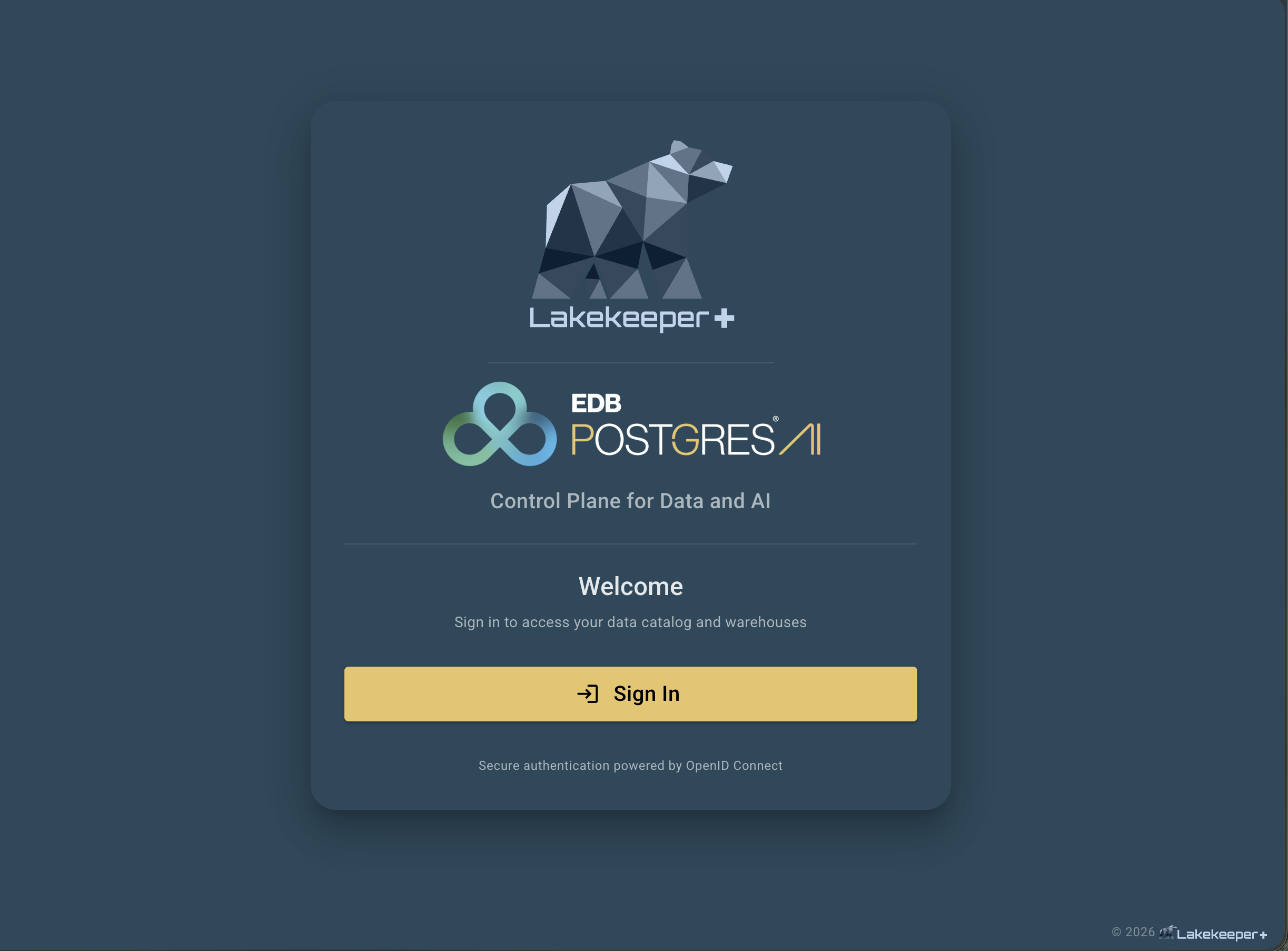
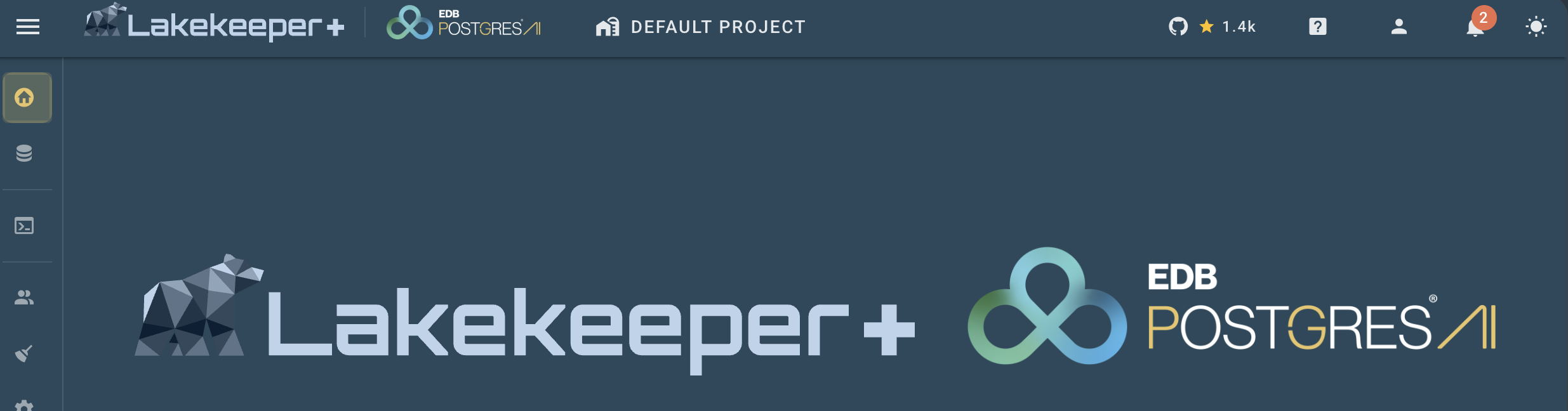
Lakekeeper Plus lets you customize the built-in UI for a deployment: replace the color scheme and place a partner logo next to the Lakekeeper+ logo — with no rebuild. Branding is applied at container start from a single environment variable, so the same image can be re-skinned per customer or per environment.
Branding is a Lakekeeper Plus feature. The open-source console ships the standard Lakekeeper theme and cannot be re-skinned.
How it works
You describe the branding as a small JSON document, base64-encode it, and pass it to Lakekeeper Plus in the LAKEKEEPER__UI__BRANDING environment variable. At serve time Lakekeeper substitutes the value into the UI, which decodes it synchronously before the app mounts — so there is no flash of the default theme and no extra network request.
Everything in the document is optional. Omit a color and the Lakekeeper default is kept; omit the logos and only the colors change.
The branding document
{
  "themes": {
    "light": {
      "primary": "#EE0000",
      "primary-darken-1": "#BE0000",
      "on-primary": "#FFFFFF",
      "secondary": "#212121",
      "background": "#FFFFFF",
      "surface": "#FFFFFF",
      "error": "#DC3545",
      "warning": "#FFC107",
      "success": "#198754",
      "info": "#1565C0"
    },
    "dark": {
      "primary": "#EE0000",
      "on-primary": "#FFFFFF",
      "secondary": "#D9D9D9",
      "background": "#212121",
      "surface": "#212121",
      "error": "#FF4D5E",
      "info": "#4AA3DF"
    }
  },
  "logoLight": "data:image/svg+xml;base64,PHN2Zy4uLg==",
  "logoDark":  "data:image/svg+xml;base64,PHN2Zy4uLg=="
}
themes.light and themes.dark are applied on top of the corresponding Lakekeeper base theme, so you only list the tokens you want to override.
Color tokens
| Token | Controls |
|---|---|
primary |
The brand color: primary buttons and call-to-action controls (for example Add Warehouse), active states, links, highlights. |
primary-darken-1 |
Hover/pressed shade of primary. |
on-primary |
Text/icon color drawn on a primary surface — set it to whatever stays readable on your primary (usually #FFFFFF or #000000). |
secondary |
Secondary buttons and accents. |
secondary-darken-1 |
Hover/pressed shade of secondary. |
background |
Page background. |
surface |
Cards, dialogs, navigation surfaces. |
surface-bright, surface-light, surface-variant |
Elevated / alternate surface shades. |
on-surface, on-surface-variant |
Text/icon color on surfaces. |
error, warning, success, info |
Semantic status colors (alerts, chips, icons). |
info is not always blue
Several informational controls use the info token. If your palette has no blue, set info to a color that fits your brand so those controls don't stand out — for example a red brand can set info to its red instead of the default blue.
Logos
Two logos are shown next to the Lakekeeper+ mark (AppBar, login page, and home page). The naming follows the theme they appear on:
| Field | Shown on | Use |
|---|---|---|
logoDark |
the light theme (white bar) | your dark-colored logo |
logoLight |
the dark theme (dark bar) | your light / white logo |
Use SVG logos: they stay crisp at every size the UI renders them (AppBar, login, home), are small once base64-encoded, and never blur. Provide each logo as a data: URI (recommended — self-contained, works in air-gapped deployments) or an https:// URL. Raster formats (PNG, etc.) are technically accepted via their own MIME type, but are not recommended.
For a tight fit next to the Lakekeeper+ logo, use a horizontal logo (wordmark) with little surrounding whitespace in its viewBox.
Building the base64 string
-
Write
branding.jsonwith your colors, following the shape above. -
Inline each SVG logo as a
data:URI and paste it intologoLight/logoDark:On macOS use
base64 -i logo.svg(no-w0). -
Base64-encode the whole document — this is the value for the env var:
-
Verify it decodes back to your JSON:
Applying the branding
Set the resulting string on the Lakekeeper Plus server:
The string can be long (logos are embedded), so storing it in a Secret / ConfigMap and referencing it — as above — is usually cleaner than inlining it.
Restart the server and reload the UI to see the new theme.
Local development
When you run the UI with the Vite dev server (instead of the packaged binary), set the same base64 value in VITE_UI_BRANDING in your .env instead of LAKEKEEPER__UI__BRANDING. The dev server inlines env values at startup, so restart the dev server after changing it — a browser refresh alone won't pick it up.
See also
- Configuration -> UI — all
LAKEKEEPER__UI__*variables. - Logos — the official Lakekeeper marks.